Docs / Administration / Two-factor authentication
Two-factor authentication
Require another proof after the password at sign-in. Use an authenticator app, passkey or security key, with recovery codes as a backup.
Sign-in factors
Two-factor authentication adds a check after your password. Configure your factors in Settings, under Account, Security.
- Authenticator app
- An app generates the six-digit code entered at sign-in. Setup shows a QR code and a manual setup key. The factor becomes active after you confirm a code.
- Passkey or security key
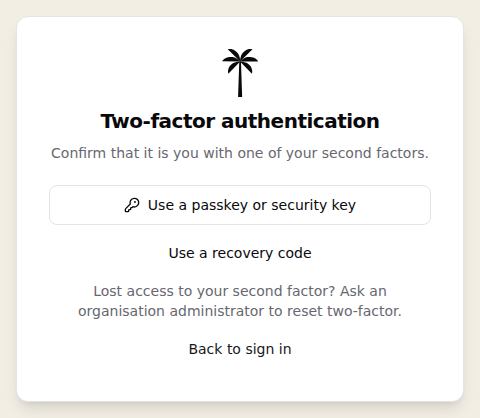
- A browser, device or hardware key supplies the second check. The password remains the first sign-in step.
Recovery codes
Your first confirmed factor creates recovery codes. Save them when they are shown. Each code signs you in once when your other factors are unavailable.
Generate new codes in Account Security after confirming your password. This replaces the entire previous set, including unused codes. The settings show how many unused codes remain.
Require a second factor
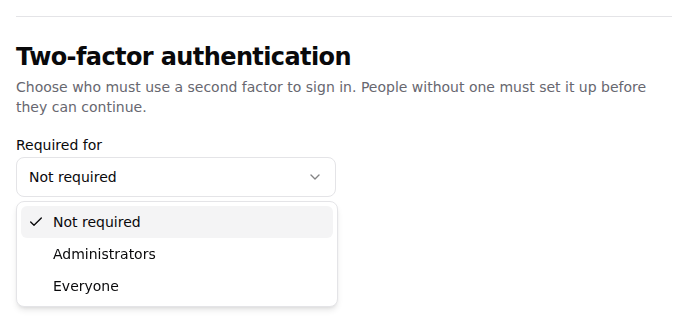
New organizations require a second factor for Administrators. An organization Administrator can also require it for Everyone in Settings, under Organisation, Security. Organizations using either requirement cannot switch to Not required.
- Not required
- Existing organizations with this setting let people choose whether to add a factor.
- Administrators
- Administrator accounts must have a confirmed factor.
- Everyone
- All human accounts in the organization must have a confirmed factor.
A covered person without a confirmed factor must set one up before continuing in the app. An unconfirmed authenticator setup and recovery codes alone do not satisfy the requirement. A covered person cannot remove their last confirmed factor.
The requirement applies to sign-in sessions. API keys and job execution credentials do not prompt for a second factor.
Replace or reset factors
Replacing an authenticator keeps the current one active until you confirm a code from its replacement. Passkeys and security keys can be added or removed in Account Security.
An Administrator can use Reset two-factor for another person in Settings, under Organisation, Users. This removes that person’s factors, recovery codes and pending setup. It leaves existing signed-in sessions in place. If the organization requires a factor, the person must enrol again.