Docs / Workflows / Integrations / Cursor
Cursor
Run Cursor Cloud Agents on GitHub repositories and pull requests, follow their progress and collect their artifacts.
What you can do
Each Cursor integration’s page in OAIZ shows these uses, with its events and its read and write actions, under What you can do with Cursor.
- Bug fixes
- Start a Cursor agent on a repository to fix a reported bug.
- Agent results
- Post the result when an agent finishes.
- Follow-up instructions
- Send follow-up instructions to a running agent.
Connection scope
Cursor Cloud Agents work on GitHub repositories and pull requests. OAIZ can launch an agent, send further instructions, read its progress and collect the files it saves. These tools are available in chat and workflows.
The connection uses a Cursor API key and reaches the agents and repositories available to that key’s owner. Agents run and bill within the owner’s Cursor plan. A new OAIZ connection is private to the person who connects it.
Connecting
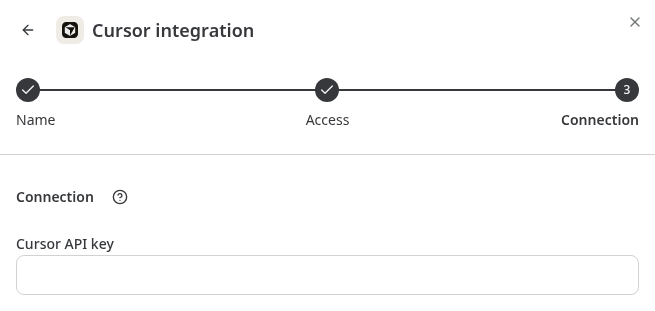
Create a user API key in the Cursor dashboard’s API Keys settings and enter it in the Cursor API key field in OAIZ. Cursor keys have no individual scopes. The key’s owner needs access to each repository used by an agent.
Connection settings show the key name and owner email when Cursor provides them. Replace a revoked key there with a valid key for the same Cursor user. Removing the OAIZ connection does not revoke the key in Cursor.
Read actions
- List Models
- List the model IDs available to Cursor Cloud Agents.
- Get Agent
- Read one agent’s status, repository, branch, pull request and available summary by agentId.
- List Agents
- List the key owner’s Cloud Agents, including agents launched outside OAIZ. Filter by pull request URL and use nextCursor for later pages. Cursor does not guarantee their order.
- Get Agent Conversation
- Read the newest 1 to 10 conversation messages, returned oldest first. Each message is limited to 4,000 bytes and marked truncated when shortened.
- List Repositories
- List the GitHub repositories the key’s owner can use, optionally filtered by query. Cursor allows one listing per minute, so reuse the result.
- List Agent Artifacts
- List an agent’s saved files with their paths and sizes, such as screenshots, recordings and reports.
- Download Agent Artifact
- Attach one saved artifact to OAIZ using its agentId and exact listed path. Supported files are PNG, JPEG, GIF, WebP, PDF, text, Markdown, HTML, CSV, JSON and MP4, up to 25 MiB. JSON must be valid. CSV files are stored as UTF-8 without a byte-order mark. The result reports the detected content type.
Write actions
- Create Agent
- Launch billed coding work on a GitHub repository or pull request. Returns agentId and agentUrl when Cursor accepts the launch. Completion happens later.
- Create Follow-up
- Send a prompt and optional images to an existing agentId. The result identifies the agent that received the request and does not wait for its work to finish.
- Stop Agent
- Ask Cursor to stop an agentId. Acceptance does not establish its final state or guarantee that a follow-up will resume it.
- Delete Agent
- Permanently delete an agentId from Cursor.
If a launch or follow-up reports an unknown outcome, inspect the existing agents before trying again. A lost response can hide an accepted request, and another launch can create duplicate billed work.
Launch inputs
- prompt
- Required instructions for the agent’s work.
- repositoryUrl or prUrl
- Provide exactly one GitHub repository URL or pull request URL. A repository launch can also set ref to a branch, tag or commit. A pull request launch cannot set ref.
- model and branchName
- Optionally choose a model ID returned by List Models or use default. Omitting model uses Cursor’s configured model. branchName names the branch for the agent’s work.
- autoCreatePr
- Ask Cursor to open a pull request automatically. Defaults to false. openAsCursorGithubApp requires autoCreatePr to be true. skipReviewerRequest requires both autoCreatePr and openAsCursorGithubApp to be true.
- autoBranch
- For prUrl only, choose whether Cursor creates another branch instead of using the pull request’s head branch. Cursor defaults to true.
Prompt images
Create Agent and Create Follow-up accept PNG, JPEG, GIF and WebP images. In chat, attach the images to your message. In a workflow, set attachEventFiles to choose images from the input event, with optional fileTypeFilter for an exact content type and fileNameFilter for exact filenames. Selecting event files fails if no image matches.
Each request accepts at most five images, with at most 15,000,000 bytes per file and 75,000,000 bytes in total before base64 encoding.
Completion events
The Agent Status Change event, e:cursor/agent-status-change, reports FINISHED or ERROR for an agent launched through this OAIZ connection. OAIZ registers the callback when it launches the agent. Follow-ups on that agent retain the callback. Following up on an agent launched elsewhere does not register one.
Match agentId to the launch result and inspect status to distinguish completion from failure. The event can also include agentUrl, repositoryUrl, ref, branchName, prUrl and summary. Those fields can be absent.
{
  "agentId": "bc-00000000-0000-4000-8000-000000000000",
  "status": "FINISHED",
  "branchName": "cursor/fix-checkout",
  "prUrl": "https://github.com/acme/web/pull/42",
  "summary": "Fixed the checkout test."
}
A workflow can start from this event. Filter by the relevant agentId or repository and check status before using the result. A workflow that sends a follow-up to the same agent on every completion can trigger itself again.
Following progress
Chat returns the launch result and does not automatically subscribe to completion. Ask for the agent’s status or conversation in a later turn to inspect its progress.
To continue a workflow after completion, map agentId to {{ action.agentId }} in the launch action’s output event. Configure a following Wait for event action for e:cursor/agent-status-change with agentId equal to {{ properties.agentId }}.
The wait’s output event must also map agentId to {{ properties.agentId }}. Set the following Get Agent action’s agentId input to {{ properties.agentId }}. This preserves the launch ID through the wait so the status read can use it.
Wait for event only receives events that arrive after the wait is registered. An agent can finish before that happens. Set a deadline with Continue with expired result so Get Agent can read the actual state after either a match or an expired wait. An expired wait does not mean the Cursor agent failed.