All videos
Workflows · 1:50
Put it live, pause it, and make changes
Go live, check the first runs, pause, and change it safely.
Transcript
0:01Welcome
This video shows how to put a workflow live, how to pause it, and how to change it safely.
0:07Draft and live
Everything you have built so far is a draft. A saved draft does not run on real events, so you can keep editing it safely. When your tests look right, select Go live. That publishes the draft as the live version. The live version now starts every time a matching event arrives. Each customer email starts a run.
0:32Check the first runs
Watch the first live runs closely. Open Logs, beside Run workflow, to see each run and the result of every job. Activity shows the same runs for all your workflows, under Runs.
0:46Make changes
To change a live workflow, edit it as usual, in Chat or on the canvas. Your first edit creates a draft, and the published version stays unchanged. The live version keeps running while you test the draft. When the test looks right, select Go live again.
1:04Versions
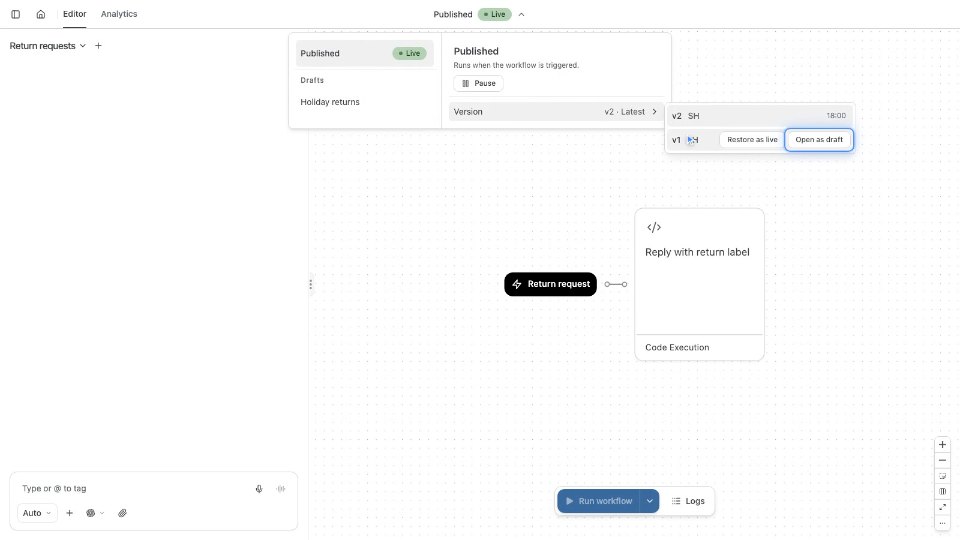
OAIZ keeps each saved version. Open the version menu and choose an earlier one to look at it. Back to latest returns to the current version. Restore as live makes the earlier one live again. Restoring changes what runs next. It does not undo messages that earlier runs already sent.
1:24Pause
If something looks wrong, open the version menu and select Pause. New events no longer start the workflow. Resume starts the published version again. A schedule picks up from that moment and does not replay the starts it missed. To fix the problem first, edit the workflow and test the draft. Go live publishes the fix, and the workflow is live again.