Knowledge
The Knowledge view manages documents that provide context to AI agents.
Click to enlarge
Overview
Knowledge documents contain information that AI agents reference when executing jobs. Attach knowledge to jobs to give agents the context they need.
Action Area (List View)
| Action | Description |
|---|---|
| Create New Document | Open the editor to create a new knowledge document |
| Delete Documents | Delete selected documents (select using checkboxes) |
Document Editor
Click any document to open the full editor view. The editor uses a rich text interface where you can format text, add headers, lists, and more. You'll see the Knowledge Actions bar at the top, the version control panel showing which branch and version you're viewing, and the document content rendered in the rich text editor.
Click to enlarge
Editor Action Area
| Action | Description |
|---|---|
| Update Title | Save changes to the document title |
| Save as New Version | Create a new version on the current branch |
| Save as New Branch | Create a new branch with current changes (enter branch name) |
| Import PDF to Branch | Upload a PDF and create a new branch from its content |
Markdown Support
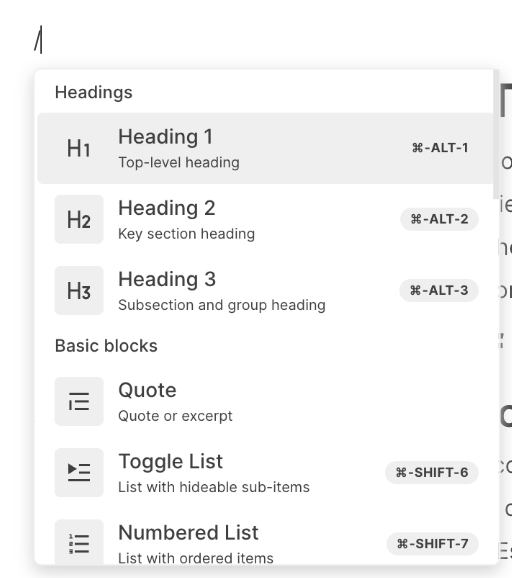
The editor supports full Markdown syntax. Type / to open the block menu and quickly insert headings, quotes, toggle lists, numbered lists, and more. You can also use standard Markdown shortcuts like # for headings or **text** for bold.
PDF Import
Already have documentation in PDF format? Use Import PDF to Branch to upload a PDF file. OAIZ will extract the text content and create a new branch with the imported content, preserving your original document as a separate version you can compare against or merge.
Version Control
Knowledge documents have git-style version control with branches and versions.
Agents Always Use Master Branch
When executing jobs, AI agents always use the latest version of knowledge documents from the master branch. Use other branches for drafting and testing changes, then merge to master when ready for agents to use the updated content.
Version Control Features
- Branch Selector — Switch between branches
- Compare Versions — View diff between versions
- Merge Branches — Combine branches together
- Delete Branch/Version — Remove branches or versions
Comparing Changes
Click Compare to open the diff viewer. You can compare any two versions — whether on the same branch or across different branches. The diff shows additions in green and removals in red, making it easy to review what changed between versions.
Click to enlarge
Select the source and target versions using the branch and version dropdowns, then review the unified diff below.
Merging Branches
To merge changes from one branch into another, start by selecting the branch you want to merge and click Compare.
Click to enlarge
In the compare view, select the target branch in the Compare To section. Review the diff to see what changes will be applied, then click the Merge button to initiate the merge.
Click to enlarge
A confirmation dialog appears showing the source branch, target branch, and merge direction. Click Confirm Merge to proceed.
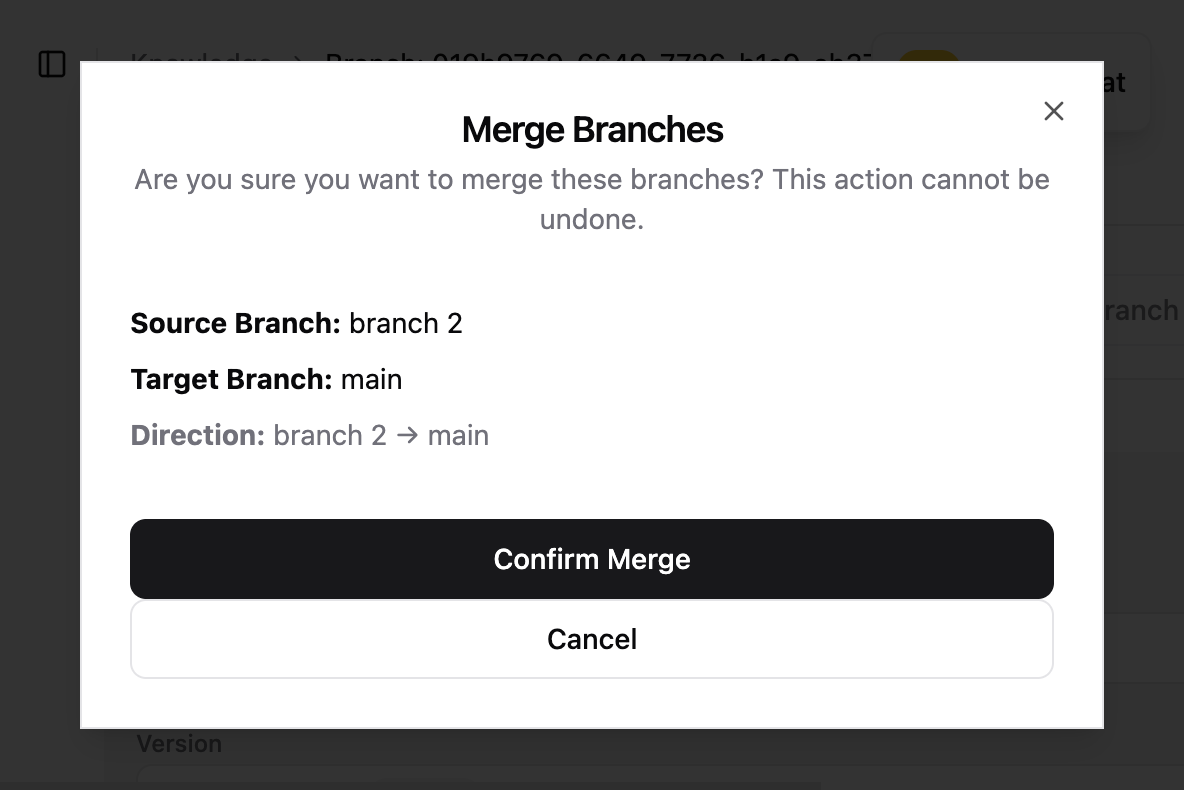
After the merge completes, you'll be taken to the target branch with a new version containing the merged content.
Click to enlarge
Coming Soon: Self-Learning Agents
Version control isn't just for humans. In upcoming releases, AI agents will be able to propose edits to knowledge documents based on their learning from job executions. You'll review AI-suggested changes using this same diff viewer before approving them — keeping you in control while letting your automations improve themselves over time.
Attaching to Jobs
When creating or editing a job with an AI Agent action, there are two ways to attach knowledge documents:
- Add Knowledge button — Click Add Knowledge to see available documents and select the ones you want to attach
- Tag in the Query — Type
@in the Query field and select a knowledge document to reference it directly using{{ knowledge.Document_Name }}syntax
Click to enlarge
Once attached, the AI agent will have access to the full document content during execution, allowing it to follow guidelines, reference information, or apply your business context.