Canvas
The Canvas is OAIZ's visual workflow builder where you design and manage chains.
Click to enlarge
Overview
The Canvas displays chains as connected nodes. Each node represents either a Job or an Event. Lines between nodes show the flow of data.
- Job Nodes — Rounded rectangles showing job name and action type
- Event Nodes — Circles showing the event type identifier
- Edges — Lines connecting nodes to show data flow
Action Area
The Action Area at the top of the Canvas provides controls for managing your workflow:
Click to enlarge
| Action | Description |
|---|---|
| Chain Selector | Dropdown to select which chain to view/edit |
| Edit Details | Open modal to edit chain name, description, status |
| Auto-fit | Center and zoom canvas to fit all nodes |
| Expand/Collapse All | Show or hide details on all job nodes |
| Save | Save chain (for drafts or AI-generated chains) |
| Clear Draft | Remove unsaved draft from canvas |
| View Logs | Navigate to logs filtered by this chain |
| Copy/Paste | Copy chain to clipboard or paste from JSON |
| Test | Run the chain with test data |
Working with Nodes
Adding Jobs
Event nodes display two buttons for adding jobs. Each creates a different workflow pattern:
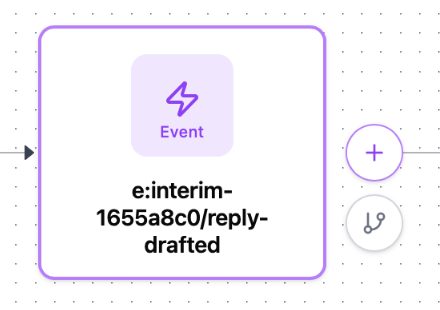
Insert (+ Button)
Adds a job in sequence. The new job becomes the next step in the workflow.
Branch Button
Creates a parallel path. Multiple jobs process the same event simultaneously.
Tip: Use branching when you need to perform multiple independent actions from one event—like sending a notification AND updating a database from the same trigger.
Clicking the + button opens the Add Job panel with three options:
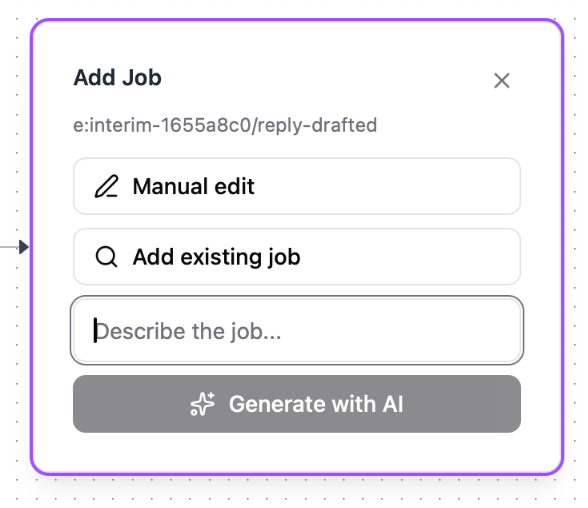
- Manual edit — Opens the job builder where you configure the action, trigger conditions, and output event from scratch
- Add existing job — Search for and reuse a job you've already created that listens for this event type
- Generate with AI — Describe what you want in plain English and OAIZ will generate the job configuration for you
Job Nodes
Job nodes represent the actions in your workflow. A job can be an integration action (like sending an email or updating a database), an AI agent, or other action types. Learn more about the different types in Key Concepts.
Click any job node to expand it and view its details. The expanded view shows collapsible sections for quick inspection:
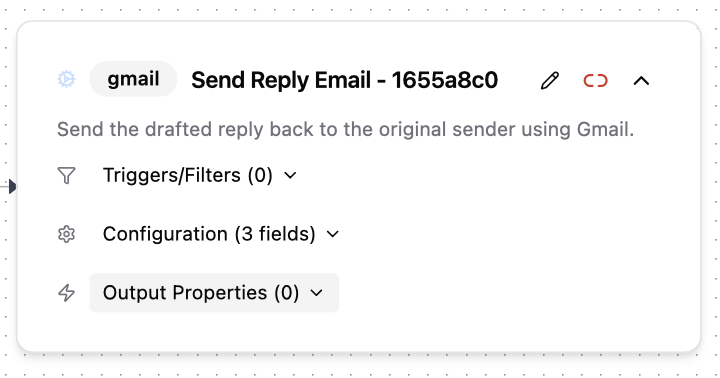
- Triggers/Filters — View filter conditions that determine when this job runs
- Configuration — Quick view of the action's configured fields
- Output Properties — See what data this job emits for downstream jobs
Job Node Actions
Use the three buttons in the top-right corner of a job node to manage it:
- Edit (pencil icon) — Opens the job in the full editor where you can modify its configuration
- Unlink (chain icon) — Removes the job from this chain and sets it to paused. The job is not deleted—it remains available in your Jobs list and can be added to other chains
- Collapse (chevron icon) — Toggles the expanded/collapsed view of the job node on the canvas
AI-Generated Chains
Use the Chat panel to describe a workflow. OAIZ will generate a chain and display it on the Canvas as a draft. Review and save to activate. See the Quickstart for a step-by-step example.
Navigation
- Pan — Click and drag on empty space
- Zoom — Scroll wheel or pinch
- Select — Click a node