Jobs
Jobs are the building blocks of your automations. Each job listens for an event, performs an action, and optionally outputs a new event for downstream processing.
Click to enlarge
Overview
The Jobs view lists all your automation jobs. From here you can create new jobs, edit existing ones, filter by status, and manage your automation library.
Job List
The table displays all jobs with key information:
- Name — Job title (click to edit)
- Status — Live, Draft, or Paused
- Action Type — What the job does (AI Agent, Integration, Webhook, Code, etc.)
- Input Event — What triggers this job
- Last Updated — When the job was last modified
Action Area
| Action | Description |
|---|---|
| Create New Job | Open the job builder to create a new job |
| Delete Jobs | Delete selected jobs (select using checkboxes) |
Creating & Editing Jobs
Click Create New Job to open the job builder, or click any job name to edit it. The job builder has several sections:
Click to enlarge
Job Edit Action Area
When editing an existing job, you have these additional actions:
Click to enlarge
| Action | Description |
|---|---|
| Save Changes | Save modifications to the job |
| Show/Hide Testing Tools | Toggle the test execution panel |
| Logs | View execution logs for this job |
| Copy / Paste | Copy job configuration to clipboard or paste from JSON |
| Delete | Delete this job |
Job Details
Configure the basic information about your job:
- Name — A descriptive name for the job
- Description — Optional explanation of what the job does
- Status — Draft, Paused, or Live
- Input Event — The event type that triggers this job
Click to enlarge
Action Types
The action defines what your job does when triggered. OAIZ supports several action types:
AI Agents
AI agents use large language models to process data, generate content, or make decisions.
| Type | Description |
|---|---|
| AI Agent - Simple | Single prompt/response. Send data to an LLM and receive a structured response. Great for classification, extraction, or generating content. |
| AI Agent - ReACT | Multi-step reasoning with tool use. The agent can reason about a problem, use tools (like searching or calculating), and take multiple steps to complete complex tasks. |
| Deep Research | Extended research capability for complex tasks requiring multiple sources and deeper analysis. |
AI agents let you configure the LLM model (GPT-4, Claude, etc.) and write a query prompt that tells the AI what to do with the incoming event data. The editor provides dynamic highlighting for property references — when you type @, you'll see autocomplete suggestions for available properties, and inserted properties are displayed as color-coded tags that make your prompt easier to read.
Click to enlarge
Input & Output Properties
Understanding Events
Properties come from events — the data packets that trigger your jobs. Each event type has a specific structure with fields you can reference.
See what an event looks like →Jobs work with data through properties. Understanding how data flows between jobs is key to building effective automations.
Input Properties
Input properties come from the event that triggers your job. When editing job fields, type @ to see available properties from the input event:
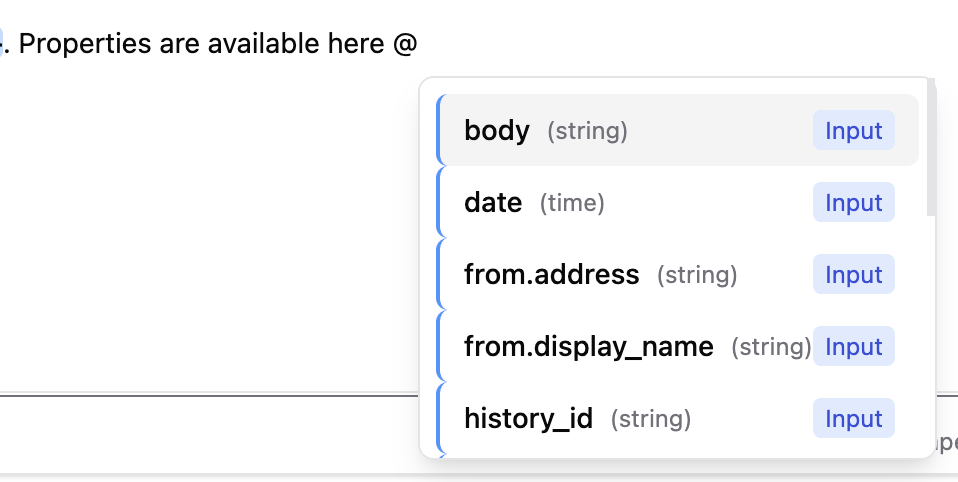

Use the {{ properties.fieldName }} syntax to reference event data in your action configuration. For nested fields, use dot notation like {{ properties.from.address }}.
Output Properties (Custom Properties)
For AI agent jobs, you can define custom properties that the LLM will fill out based on your instructions. These become the output event properties that downstream jobs can consume.
Click to enlarge
The Output Event section lets you configure:
- Event Type — The identifier for the output event (e.g.,
e:interim-abc123/reply-drafted) - Property Mappings — Map action results to output properties that downstream jobs can use
- Pass-through Properties — Forward properties from the input event to the output
Integration Actions
Perform actions via connected services. Each integration provides its own set of available actions:
| Integration | Example Actions |
|---|---|
| Gmail | Send email, reply to thread, add label |
| Slack | Post message, update message, add reaction |
| GitHub | Create issue, add comment, create PR |
| Monday | Create item, update column, move item |
| Notion | Create page, update database, add block |
Click to enlarge
Webhook
Send HTTP POST requests to external URLs, allowing you to integrate with any API or service that accepts webhooks.
Click to enlarge
Code
Development Notice
The Code action type is currently under active development. The interface may look different from what's shown in this documentation as we continue to improve it.
Execute custom Python code in a secure, sandboxed environment. Your code can only access what you explicitly configure in the action — such as which LLM models and tools are allowed. This gives you full programmatic control while maintaining security.
Your code must define a main() function that receives the event and returns a DtoCodeActionOutput. You can write multiple Python files, but main.py is required and must contain the main() function.
Click to enlarge
Use cases for Code actions:
- Data transformation — Restructure, filter, or combine data from events
- Calculations — Math, date manipulation, string processing with Python libraries
- Data validation — Complex validation logic with custom error handling
- LangGraph agents — Build advanced AI workflows using LangGraph with the models and tools you configure
When configuring a Code action, you specify:
- Allowed Models — Which LLM models the code can use via the OAIZ LLM API (leave empty if no LLM calls are needed)
- Code Files — Your Python files, including the required
main.pywith themain()function
The sandbox ensures your code cannot access anything beyond what you've explicitly permitted.
Trigger Conditions
By default, a job runs every time its input event type is received. Trigger conditions let you filter which events actually trigger the job based on their properties.
Click to enlarge
Condition Types
Each condition compares an event property to an expected value:
| Condition | Description |
|---|---|
| Equals | Property exactly matches the value |
| Not Equals | Property does not match the value |
| Contains | Property contains the value (for strings or arrays) |
| Greater Than / Less Than | Numeric comparison operators |
| Exists | Property is present and not null |
Combining Conditions
Use AND and OR logic to combine multiple conditions:
- AND — All conditions must be true
- OR — At least one condition must be true
You can nest groups to create complex filter logic like "Subject contains 'urgent' AND (sender is john@example.com OR sender is jane@example.com)".
Knowledge Documents
Knowledge is how you give your AI agents the business context they need. Instead of cramming everything into the prompt, knowledge documents let you maintain company guidelines, tone of voice, product information, or any reference material in one place — then attach it to any job that needs it.
There are two ways to attach knowledge to a job:
- Add Knowledge button — Click Add Knowledge to browse and select available documents
- Tag in the Query — Type
@in the Query field and select a knowledge document to reference it directly using{{ knowledge.Document_Name }}syntax
Click to enlarge
Benefits of using Knowledge documents:
- Centralized updates — Update the document once and all jobs using it get the new context
- Reusability — Share the same context across multiple jobs
- Organization — Keep prompts clean by separating instructions from reference material
- Chain inheritance — Optionally inherit knowledge from the parent chain
Learn more about creating and managing knowledge in the Knowledge view documentation.
Testing Tools
Before going live, you can test your job using the built-in Testing Tools. Click Show Testing Tools in the job edit action bar to expand the test panel. The testing tools allow you to run your job with a real event and see exactly what would happen without affecting your live automations.
1. Select Event
Choose an event from your event history to use as test input. Click Select Event or Change Eventto open the event picker. Once selected, you'll see:
- Event Info — UUID, event type identifier, and creation timestamp
- User Info — Associated user UUID and identifier (if applicable)
- Event Properties— The full JSON payload with all data fields (expandable with "Show more")
Click to enlarge
2. Test Configuration
Configure how the test should run using the toggles before executing:
- Execute Integration Commands — When enabled, the test will actually execute integration actions (like sending emails or Slack messages). Leave this off for safe testing.
- Publish Events — When enabled, generated output events will be published to the event stream. Leave this off to prevent test events from triggering downstream jobs.
Click Run Test to execute your job with the selected event. By default, both toggles are off, so tests run safely without side effects.
Click to enlarge
3. Execution Logs
After running a test, the Execution Logs section shows a detailed timeline of what happened:
- Success indicator — Green banner confirming the test executed successfully
- Log entries — Timestamped messages showing each step of execution
- LLM calls— For AI agent jobs, you'll see the full prompt sent to the LLM and the response
- Dry run notice — Indicates whether events would have been published (when toggles are off)
This helps you debug issues, verify trigger conditions are working, and understand exactly how your job processes events.
Click to enlarge
4. Output Event
The Output Event section shows what event your job would generate (if configured to emit an output event):
- Event Info — The output event type identifier and timestamp
- User Info — User information passed through to the output event
- Event Properties— The complete JSON payload with all properties that would be available to downstream jobs (expandable with "Show more")
Review the output properties to ensure your job is generating the correct data structure for downstream jobs in your chain.
Click to enlarge
Note:Test runs are safe by default—they don't execute integration commands or publish events unless you explicitly enable those options. This makes testing perfect for debugging and validation before going live.
Best Practices
Naming Conventions
- Use descriptive names that explain what the job does (e.g., "Draft Reply Email" instead of "Job 1")
- Add descriptions explaining the job's purpose and any important configuration details
Property Flow
- Ensure output property names from one job match the expected input property names of downstream jobs
- Use the Logs view to debug property mismatches—you can see exactly what data each job received and produced
Testing Before Live
- Always test with real event data before setting status to Live
- Use the "Use Latest Event" option to quickly test with actual data
- Check the output properties match what downstream jobs expect